How to Increase FPS on a Laptop for Gaming
To increase FPS on a laptop for gaming, plug the laptop in, switch Windows to Best performance, force the game to use the dedicated graphics card, update the graphics driver, and lower demanding in game settings such as shadows and ray tracing. These five steps fix the most common laptop problems first. The rest of this guide shows how to find what is holding your laptop back, and how to fix the heat and power limits that desktop guides often ignore.
FPS means frames per second: how many images your laptop shows each second. Higher FPS feels smoother, and a stable 60 FPS usually feels better than a number jumping between 50 and 90.
Find the bottleneck before you change settings
Do not guess. Open your graphics card app or a free tool such as MSI Afterburner while you play, and watch graphics card and processor usage. If graphics card usage sits near 100 percent while the processor stays lower, the graphics card is the limit, so lower resolution, turn on upscaling, and reduce graphics settings. If processor usage is near 100 percent instead, the processor is the limit, so close background apps and lower draw distance.
Also watch temperatures. When a laptop gets too hot, it slows its chips down to protect them. This is called thermal throttling, and it often shows up as strong FPS for ten or fifteen minutes, then sudden drops. No graphics setting fixes a heat problem on its own.
Step 1: Plug in and use the full power mode
This is the most laptop specific fix, and the one most often missed. A gaming laptop on battery power deliberately limits performance to save charge. Always play with the charger connected, using the charger that came with the laptop. A weaker charger may not deliver enough power, and the laptop may still throttle.
Next, set Windows to Best performance. Open Settings, then System, then Power and battery, and choose Best performance from the power mode list. Then open your laptop maker’s own app, such as Lenovo Vantage or ASUS Armoury Crate, and pick its performance or turbo mode. These apps control fan speed and power limits that Windows alone cannot reach. Finally, turn on Windows Game Mode in Settings, then Gaming, then Game Mode.
Step 2: Force the game onto the dedicated graphics card
Many gaming laptops have two graphics chips: a power saving integrated chip for everyday work, and a much faster dedicated card for games. Some games pick the wrong one, giving poor FPS on a laptop that should run the game well.
To fix this in Windows 11, open Settings, then System, then Display, then Graphics, find your game or add it with Browse, click Options, and choose High performance. Also check your graphics card app. In NVIDIA Control Panel, set the preferred graphics processor to High performance NVIDIA processor. In AMD Software, set the game to High Performance. Some laptops also have a MUX switch that connects the dedicated card directly to the screen. Turning it on can add FPS.
Step 3: Update drivers and clean up Windows
Out of date graphics drivers commonly cause low FPS and crashes in new games. Download the latest driver from NVIDIA, AMD, or Intel directly, rather than relying only on Windows Update. Choose the game ready or recommended driver for your card, and restart the laptop after installing it.
Also remove the background load. Close your browser, unused launchers, recording software, and chat apps before you play. Turn off overlays you do not use, such as Discord and Steam overlays. Check Task Manager, then Startup apps, and disable apps you do not need at startup.
Step 4: Change the in game settings that matter most
Not all graphics settings cost the same FPS. Shadows, ray tracing, reflections, and volumetric lighting usually cost the most for the least visible gain on a laptop screen. Turn ray tracing off first if your FPS is low, set shadows to medium or low, and reduce reflections next.
Then turn on upscaling if the game offers it. NVIDIA DLSS, AMD FSR, and Intel XeSS render at a lower internal resolution and rebuild a sharp image. Quality or Balanced mode usually gives a large FPS gain with little visible loss. If the game has no upscaler, try lowering resolution scale to around 85 percent. Finally, turn V Sync off if input feels laggy, and cap the frame rate slightly below your screen refresh rate. A cap keeps temperatures down and frame times steady. If you also play on a TV, our guide to the best TV settings for PS5 gaming covers refresh rate and game mode.
Step 5: Fix heat before it fixes your FPS for you
Laptops pack a powerful processor and graphics card into a thin case with very little airflow. When temperatures climb toward 90 degrees Celsius or higher, the laptop slows its chips down. That is thermal throttling, and it is why laptop FPS guides need a different approach from desktop guides.
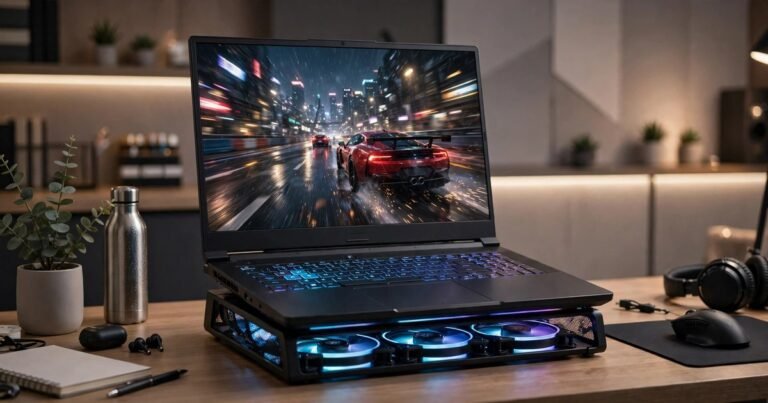
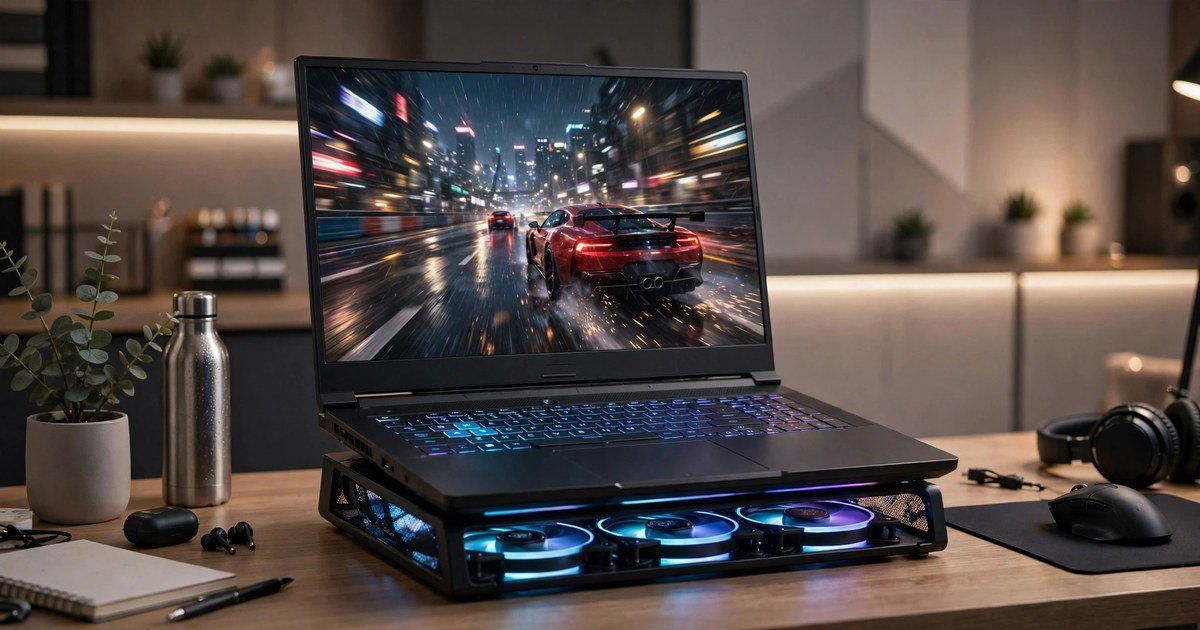
Start with airflow. Play on a hard, flat surface, never on a bed or sofa that blocks the vents. Lift the back of the laptop slightly with a stand or cooling pad so air reaches the intake vents. Clean dust from vents and fans every few months with short bursts of compressed air, holding the fan blades still. Do not open the laptop to repaste the processor unless you know what you are doing, as opening it can void the warranty on some models. If FPS only drops after long sessions, cap the frame rate at 60. A steady 60 FPS produces less heat and often feels smoother.
Step 6: Check memory and storage
16 GB is the practical minimum for modern games, and two memory sticks in dual channel mode perform better than a single stick of the same size. With only 8 GB, or a single 16 GB stick, a memory upgrade can reduce stuttering, though it will not fix a weak graphics card. Check your laptop manual first, because memory is soldered in place on some thin models.
When settings are not enough
If you have done every step here and FPS still stays low at modest settings, the laptop itself is the limit for that game. An external graphics card dock, a RAM upgrade, or a new laptop are the only real fixes at that point. Avoid so called FPS booster apps. They rarely help, and some bundle unwanted software. For online games, remember that FPS and network lag are different problems. If the game looks smooth but actions feel delayed, the connection is the issue. Our comparison of mesh WiFi versus WiFi extenders can help if your home network is part of the problem. If you play on PC with a controller, see how to connect a PS5 controller to a PC via Bluetooth.
Frequently asked questions
Why is my gaming laptop FPS low even when plugged in?
Playing plugged in is necessary but not always enough. Check Best performance mode, your laptop maker’s performance mode, and that the game uses the dedicated graphics card. A hot laptop throttles even on mains power.
Does Game Mode increase FPS?
Game Mode can help a little by reducing background activity, but it will not fix a hardware limit or a heat problem on its own.
Should I use DLSS or FSR?
Yes, if the game offers it. Upscaling is one of the largest free FPS gains on a laptop. Start with Quality mode, and drop to Balanced only if you still need more frames.
Is it bad to play games while the laptop is hot?
Modern laptops slow down when they get too hot, so short hot sessions rarely cause damage. Repeated overheating still shortens component life, so improve airflow and cap the frame rate.
How much FPS do I actually need?
60 FPS is smooth for most single player games. Competitive shooters feel better at 120 FPS or more, but only on a screen with a matching refresh rate. Aim for consistency first.
Conclusion
Increasing FPS on a gaming laptop comes down to removing laptop specific limits first: play plugged in, use the full performance mode, force the dedicated graphics card, and keep heat under control. Then update drivers, close background apps, and tune the heaviest in game settings, testing one change at a time.
About the Author