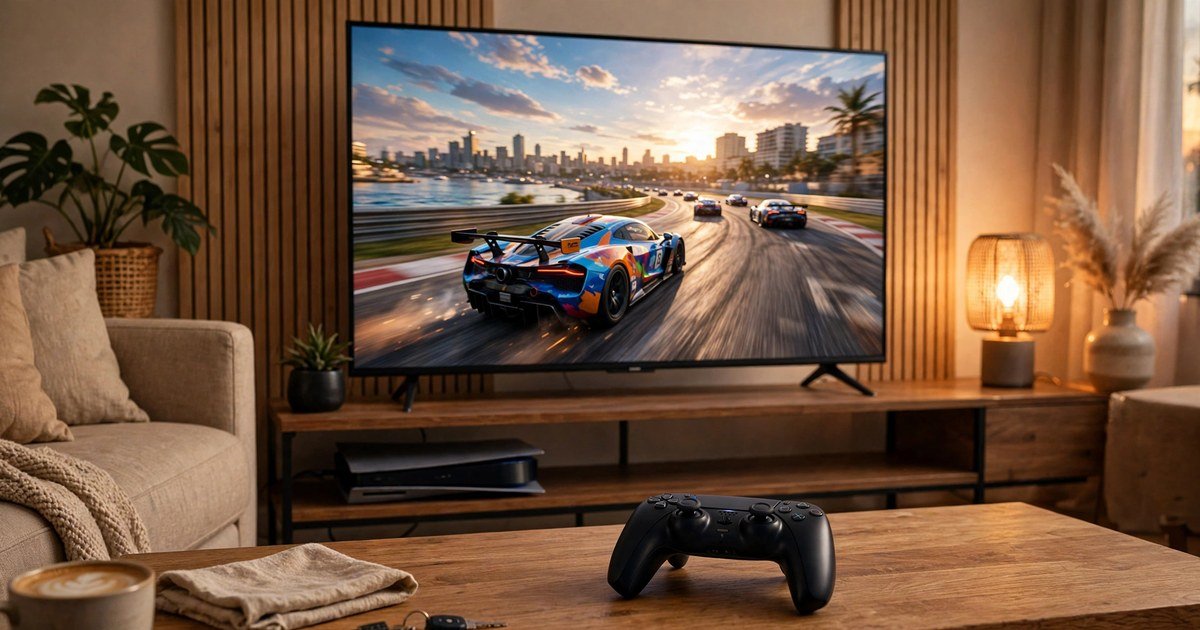
Your PS5 can look and feel far better than it does out of the box, and the fix costs nothing. Most of the improvement comes from a handful of TV settings that are switched off by default.
The short answer: plug the PS5 into an HDMI 2.1 port with the cable from the box, turn on Enhanced HDMI format for that port, switch the TV to Game Mode, enable VRR and ALLM, set HDR to HGIG, and run the PS5 HDR calibration tool. That pass unlocks 4K at 120Hz, low input lag, and accurate HDR.
Start with the right port and cable
This step matters more than any other. The PS5 ships with an Ultra High Speed HDMI 2.1 cable in the box, so use that cable and not an older one from a drawer.
Most TVs only fit HDMI 2.1 on one or two ports, and the rest are slower HDMI 2.0 ports. Check the labels on the back of the TV: on many LG and Samsung models the HDMI 2.1 ports are HDMI 3 and 4. Plug the PS5 directly into one of those ports, not into a soundbar or receiver first, unless that device is confirmed to pass 4K 120Hz through. Then enable the enhanced format for that port (Samsung: Input Signal Plus, LG: HDMI Deep Colour, Sony: Enhanced Format, Hisense: Enhanced or HDMI 2.1 Format). Without this step, your TV treats the port as a standard port and refuses the faster signal.
Set up the PS5 side
Go to Settings, then Screen and Video, then Video Output on your PS5. Set Resolution, 120 Hz Output, and VRR all to Automatic. Turn on Apply to Unsupported Games if you want steadier frame rates in games that do not officially support VRR.
Set HDR to On When Supported, so HDR games get HDR while older games stay accurate. Leave RGB Range and 4K Transfer Rate on Automatic unless you see flickering. Finally, run the PS5 HDR calibration: choose Adjust HDR and follow the on screen steps until the symbol is barely visible.
Turn on Game Mode and ALLM
Game Mode is the single most important picture setting for gaming. It tells your TV to cut out most of its image processing, which is what keeps input lag low. Input lag is the delay between pressing a button and seeing the result on screen. Find Game Mode under Picture Mode or Picture Settings, and select Game for the PS5 input.
If your TV supports ALLM (Auto Low Latency Mode), it switches itself into Game Mode whenever you start playing, and back for films. On the PS5, ALLM works automatically, so you need no separate console setting. One warning: Game Mode can look flatter at first, because it switches off extra processing. That flatter look is more accurate, and the HDR steps below restore the depth.
VRR: smoother motion without tearing
VRR stands for Variable Refresh Rate. It lets your TV match its refresh rate to the frame rate the PS5 is producing in real time, so a game that drops from 60 frames per second to 50 shows far less tearing or stutter.
To use VRR you need a TV with HDMI 2.1 and VRR support, the PS5 in that HDMI 2.1 port, and VRR set to Automatic on the console. The PS5 only outputs VRR over HDMI 2.1, and the TV must be in Game Mode for the console to offer the option. If VRR is greyed out, the usual cause is the wrong HDMI port or the enhanced format not being switched on.
HDR done right: HGIG beats Dynamic Tone Mapping
This is where most PS5 setups go wrong. HDR games carry brightness information from the developer, but your TV has its own ideas about brightness. When both try to control the picture at once, you get double tone mapping: washed out highlights, grey blacks, and colours that look wrong.
The fix is HGIG, which stands for HDR Gaming Interest Group. HGIG tells the TV to stop guessing and let the console handle brightness instead. On LG TVs find it under Game Optimizer, on Samsung TVs in the Game Mode settings, and on Sony TVs as a tone mapping option. Switch HGIG on and Dynamic Tone Mapping off, since the two conflict. Then run the PS5 HDR calibration again. Together, HGIG plus the console calibration give you the HDR picture the developers intended. If your TV has no HGIG option, switching Dynamic Tone Mapping off and running the calibration still gets you most of the way there.
Quick brand guide
On LG TVs, choose Game Optimizer, turn on HGIG, and check HDMI Deep Colour is on for the PS5 port. On Samsung TVs, switch on Input Signal Plus, then turn on Game Mode, VRR, and HGIG. On Sony Bravia TVs, set the HDMI format to Enhanced Format and switch on Auto HDR Tone Mapping on newer models. Across all brands, switch off motion smoothing, noise reduction, and heavy sharpening for gaming.
Performance mode or fidelity mode
Many PS5 games offer a choice between Performance and Fidelity modes. Performance targets higher frame rates, often 60 or 120 frames per second, with slightly lower resolution or detail. Fidelity targets the best picture quality, usually at 30 or 60 frames per second, with richer lighting and ray tracing. A useful rule: choose Performance for competitive or fast paced games, and Fidelity for slow story driven games. You can also set a default preference under Settings, then Saved Data and Game Settings, then Game Presets.
Troubleshooting
If 120Hz does not appear, check the port, the cable, and the enhanced format setting, in that order. Also confirm the game supports a 120Hz mode, since the PS5 only outputs 120Hz while such a game runs. If HDR looks washed out, switch HGIG on or Dynamic Tone Mapping off, rerun the PS5 HDR calibration, and check HDR is set to On When Supported rather than Always On. If games feel sluggish, check the TV is in Game Mode for the PS5 input. Controller issues can feel like lag too: our guide on how to fix stick drift on a PS5 controller without opening it covers the most common fixes. If the picture flickers at 4K 120Hz, try the 4K Transfer Rate setting at minus 1 and a different Ultra High Speed cable.
Frequently asked questions
Do I need an HDMI 2.1 TV for PS5 gaming?
No. Any TV with an HDMI port will play PS5 games, and an HDMI 2.0 TV handles 4K at 60Hz with HDR well. You need HDMI 2.1 for 4K at 120Hz and for VRR.
Why does Game Mode look worse than normal picture mode?
Game Mode switches off extra processing, which can look flat at first, but it cuts input lag dramatically, which matters more in games than in films. Once HDR is set up with HGIG and the console calibration, the picture regains its depth.
What is the difference between HGIG and Dynamic Tone Mapping?
Dynamic Tone Mapping lets the TV guess brightness scene by scene, which often looks bright but inaccurate. HGIG hands brightness control to the console, so the picture follows what the developer intended. Do not use both together.
Why is my PS5 stuck at 60Hz when my TV supports 120Hz?
The PS5 only switches to 120Hz output while a game with a 120Hz mode is running, so menus staying at 60Hz is normal. If a supported game still shows 60Hz, check the HDMI port, the cable, the enhanced format setting, and the in game performance mode.
Final checklist
Work through this list once and your setup is done. Use the PS5 cable from the box, plug it into an HDMI 2.1 port, and enable Enhanced format for that port. On the console, set resolution and 120Hz output to Automatic, VRR to Automatic, and HDR to On When Supported, then run the HDR calibration. On the TV, select Game Mode, switch on ALLM and VRR, set HGIG on and Dynamic Tone Mapping off, and switch off motion smoothing and noise reduction. Done properly, the difference is obvious the first time you play. If your controller ever feels off, our guide on fixing PS5 stick drift without opening the controller will help you rule out hardware problems before you blame the TV.
About the Author