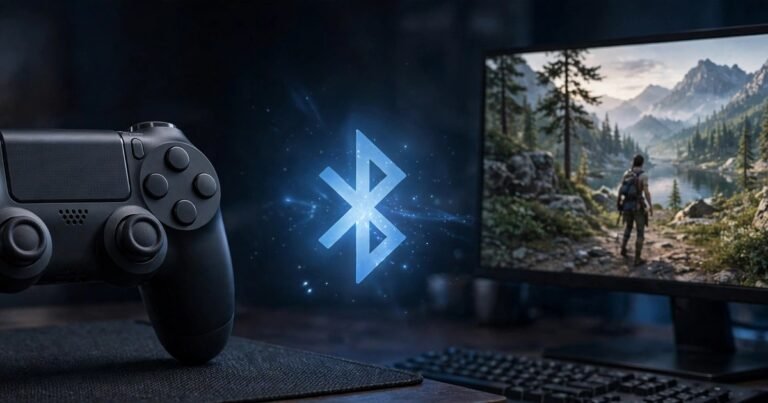
Yes, you can connect a PS5 DualSense controller to a PC via Bluetooth, and it takes about two minutes once you know the button combination. Turn the controller off, hold the PS button and the Create button together until the light bar flashes rapidly, then add it in Windows Bluetooth settings where it appears as Wireless Controller. After that, open Steam, turn on PlayStation Controller Support, and test the buttons before you play. This guide covers the Windows 11 steps, the Steam setup, the limits of Bluetooth, and the fix for the controller reconnecting to your PS5.
Before you start: what you need
You need a DualSense controller with some charge, a PC with Bluetooth, and Windows 10 or Windows 11. Most laptops have Bluetooth built in, and many Wi-Fi desktop motherboards include it too. If your desktop has no Bluetooth, a small USB Bluetooth adapter will work, although a cheap adapter can add lag.
Charge the controller for a few minutes first. A low battery can stop it appearing in the Bluetooth list. You need no Sony software or extra drivers, because Windows installs it automatically.
One fact explains half of all pairing frustration. A DualSense pairs with one Bluetooth device at a time. Pairing it to your PC replaces the PS5 pairing, and pairing it back to your PS5 replaces the PC pairing.
How to put a PS5 controller into Bluetooth pairing mode
First, make sure the controller is fully off, not just idle. Hold the PS button for about ten seconds until the light bar goes dark.
Next, hold the PS button and the Create button at the same time. The Create button sits just to the left of the touchpad. Keep holding both until the light bar flashes blue rapidly. That rapid flashing means the controller is discoverable.
Do not press the PS button on its own at this stage. A single press tells the controller to wake up and reconnect to the last device it was paired with, which is usually your PS5.
How to connect a PS5 controller to a PC via Bluetooth on Windows 11
With the controller already flashing in pairing mode, follow these steps:
- Press Windows key plus I to open Settings.
- Select Bluetooth and devices in the left sidebar, and make sure Bluetooth is switched on.
- Click Add device, then select Bluetooth.
- Wait for Wireless Controller to appear, then click it. Windows usually shows the generic name Wireless Controller, not DualSense.
- Wait for Windows to confirm the pairing. The controller should now show as Connected, and the light bar should settle into a solid colour.
Test it before you play. Press Windows key plus R, type joy.cpl, and press Enter to open the Windows game controller checker. Check that both sticks, the face buttons, and the triggers respond.
On Windows 10 the steps are almost identical: open Settings, then Devices, then Bluetooth and other devices, and choose Wireless Controller in the same way.
How to set up Steam Input so games actually use the controller
Pairing in Windows is only half the job. Steam has its own controller layer, called Steam Input, which decides how games see your DualSense. Without it, some games will not recognise the controller, and others will show Xbox prompts instead of PlayStation prompts.
Open Steam, then go to Steam, then Settings, then Controller. Set PlayStation Controller Support to Enabled so Steam handles the DualSense and translates its inputs for games built for Xbox controllers.
For most games, leave that setting on. If a game supports the DualSense natively, change the setting for that game only: right click it in your library, select Properties, then Controller, and choose Disable Steam Input. For games outside Steam, add them as a non-Steam game and Steam Input will handle them too.
What works over Bluetooth, and what needs a USB cable
Over Bluetooth you get the core experience: sticks, face buttons, D-pad, triggers, and touchpad input in many games, plus basic vibration in some titles. That is enough for most games.
What you generally do not get over Bluetooth is the full DualSense experience. Sony states that haptic feedback on PC requires a USB connection, and in practice the adaptive triggers, microphone, and speaker also work reliably only in supported games over USB. If adaptive triggers and full haptics matter in a game, plug in with a USB-C cable for that game.
Use a data-capable USB-C cable, not a charging-only cable. Many cheap cables carry power only, so the controller will charge but Windows and Steam will never see it. If a wired connection does nothing, swap the cable first. Wired play also gives lower latency and keeps the controller charged. For help keeping your controller in good shape, read our guide on how to fix stick drift on a PS5 controller without opening it.
Why your controller keeps connecting to the PS5 instead of your PC
If your PS5 is in the same room as your PC, this problem will find you. Pressing the PS button wakes a PS5, and the controller holds only one Bluetooth pairing at a time, so a PS5 that is on, or in rest mode, competes with your PC for it.
Remove the competition before you pair. Turn the PS5 fully off, not just into rest mode. Then turn the controller fully off, hold PS plus Create until it flashes rapidly, and pair it to the PC straight away.
If it still jumps back, remove the Wireless Controller entry from the PC Bluetooth list and pair fresh. Also turn off Bluetooth on nearby phones or tablets that have previously paired with it.
How to switch the controller back to your PS5
Connect the controller to your PS5 with a USB-C cable, press the PS button once, and wait for the profile selection screen. That re-pairs it to the console, and after that you can unplug and play wirelessly again. You will need to repeat the Bluetooth pairing steps next time you use it on your PC.
Troubleshooting: when pairing goes wrong
Controller does not appear: check the battery, make sure it is fully off before you hold PS plus Create, confirm rapid flashing, move closer, and restart PC Bluetooth.
Controller pairs but Steam does not see it: check PlayStation Controller Support is Enabled in Steam Settings, then restart Steam. Use joy.cpl to confirm whether Windows or Steam is the problem.
Lag or disconnects: move closer, check desktop Wi-Fi antennas are screwed in, turn off unused Bluetooth accessories, and try USB-C to test whether interference is the cause.
Frequently asked questions
Can I use a PS5 controller on PC without Steam?
Yes. Windows recognises it as a standard controller once paired. Steam simply makes setup easier.
Do I need to buy anything extra to connect a PS5 controller to a PC?
No, if your PC already has Bluetooth. If not, use a USB Bluetooth adapter, or play wired with a data-capable USB-C cable.
Why does Windows call it Wireless Controller instead of DualSense?
Windows uses a generic Bluetooth name, while Steam usually shows DualSense. The generic name does not mean pairing failed.
Will my PS5 controller work on PC and PS5 at the same time?
No. It pairs with one device at a time over Bluetooth. Expect to re-pair when you switch platforms.
Do adaptive triggers and haptic feedback work over Bluetooth on PC?
Generally no, not to full effect. For full haptics and adaptive triggers in supported games, use USB-C and disable Steam Input for that game where it supports it natively.
Conclusion
Connecting a PS5 controller to a PC via Bluetooth is a two-minute job once you know the PS plus Create combination and the one-device pairing rule. Pair it in Windows, turn on PlayStation Controller Support in Steam, and test it with joy.cpl. Use Bluetooth for couch gaming, USB-C for full haptics and adaptive triggers, and turn the PS5 fully off while you pair if it keeps stealing the connection. If you play on a TV too, our guide to the best TV settings for PS5 gaming will help with the picture setup.
About the Author