The best capture card for most UK beginners is an external USB card that captures at 1080p60 and passes 4K video through to your TV. That covers Twitch and YouTube streaming from a PS5, Xbox Series X or S, or Nintendo Switch. If you want one safe current buy, the Elgato 4K X is the strongest all round choice. If you only stream at 1080p, a budget 1080p60 USB card is enough.
What a capture card actually does
Think of a capture card as a translator. Your console speaks HDMI. Your streaming software, usually OBS Studio, speaks USB video. The card converts one to the other in real time, with so little delay that the picture in OBS matches your TV. Cheap cards can add delay or drop frames, so the brand and the USB standard matter.
Before you buy: the five specs that matter
Capture resolution is what OBS receives. For Twitch, 1080p60 is the standard target, and every modern card handles it. You do not need 4K capture to start.
Passthrough resolution is what reaches your TV while you play. It matters more than capture resolution for most buyers. If you play on a 4K TV, you want 4K passthrough so your own game still looks right. Our guide to the best TV settings for PS5 gaming covers game mode and HDR, and pairs well with a capture setup.
Latency is the delay between your controller input and the picture. Look for cards described as ultra low latency or zero lag passthrough. The TV feed should not be delayed. The OBS preview can lag slightly, and that is normal, because you play from the TV, not the preview.
Connection type decides which computers the card works with. External USB cards suit almost everyone, including laptop owners. Internal PCIe cards only fit desktop PCs with a free slot. They are a poor first buy.
Software support decides how much setup pain you face. Elgato, AVerMedia, and NZXT cards all work with free OBS Studio. Avoid no name cards with no OBS support.
The PS5 HDCP step every beginner misses
If you stream from a PS5, do this step before you plug anything in. The PS5 has a copy protection setting called HDCP switched on by default. With HDCP on, your capture card sees an encrypted signal and shows a black screen, even though the game plays fine on your TV. This is the most common beginner problem.
Turn HDCP off by going to Settings, then System, then HDMI, then switching Enable HDCP off. Connect your PS5 to the card only after that. Note one trade off: with HDCP off, media apps such as Netflix and Disney Plus will not play. Switch it back on to watch a film, and off again before streaming. Xbox and Switch games do not face this problem, so check cables first there.
The best capture cards for beginners in the UK
Start with your budget and your TV, not the most expensive card on a list. Prices change often, so check a UK retailer on the day you buy, and treat the figures below as price bands, not fixed quotes.
Budget pick: a basic 1080p60 USB capture card, starting well under £100 from UK retailers. These suit Switch streaming and 1080p console play. Check the card genuinely supports 1080p60 over USB 3.0, not just 1080p30, which looks choppy in fast games. Avoid USB 2.0 only cards.
Best value mid range pick: the Elgato HD60 X. It captures at 1080p60 with HDR10 or 4K30, and passes 4K60 HDR video to your TV with very low latency. UK listings seen during research ranged from around £130 to around £190. Elgato now lists the HD60 X as discontinued, although retailer stock remains, so do not pay a premium for it.
Best current all round pick: the Elgato 4K X. It uses HDMI 2.1, captures up to 4K144 with HDR10, and passes high refresh gameplay to your monitor with variable refresh rate intact. A UK listing seen during research priced it at £229.99. That is more than a beginner strictly needs, but it removes every passthrough compromise, and it works with PS5, Xbox Series X and S, and Switch 2.
Best for desktop PC owners only: an internal PCIe card such as the Elgato 4K Pro or the AVerMedia Live Gamer 4K. These sit inside a desktop PC and capture 4K60, but a laptop owner cannot use them, so skip them as a first purchase.
How to set up your capture card with OBS in 10 minutes
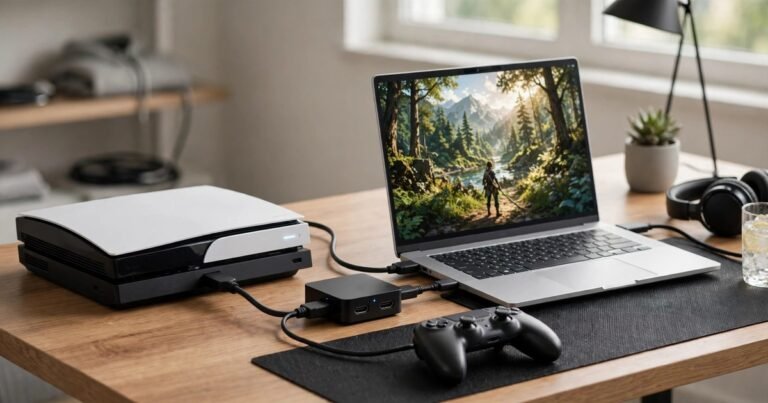
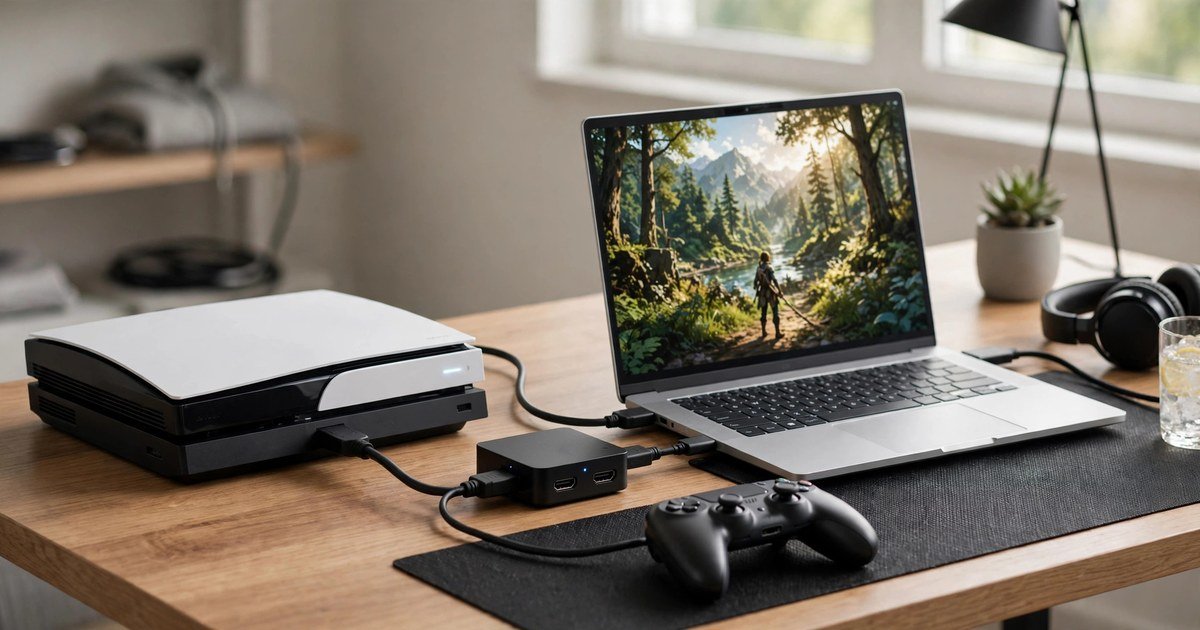
You need two HDMI cables, the card USB cable, and OBS Studio from the official OBS website. Do the steps in this order. First, turn HDCP off on your PS5 if you use one. Second, connect HDMI from your console to the card input. Third, connect HDMI from the card output to your TV. Fourth, connect the card to your computer by USB 3.0 or USB-C, not USB 2.0.
Now open OBS Studio. Create a scene, add a Video Capture Device source, and pick your card. Your gameplay should appear in the preview. If it does not, recheck HDCP, reseat both HDMI cables, and try a different USB port before you assume the card is broken. Then set your stream output to 1080p60, which most connections can upload reliably. A wired connection beats Wi-Fi here, and our guide to the best WiFi extender for gaming in the UK explains how to stabilise a distant gaming room. Add your microphone and webcam, test a short recording, and watch it back for audio sync problems.
Xbox and Nintendo Switch differences
Xbox Series X and S use the same card and OBS steps as PS5, and Xbox games do not trigger the same black screen problem. Switch is simplest of all. Dock the Switch, plug the dock HDMI cable into the card input, and run a second cable from the card output to your TV. No settings change is needed. Handheld mode cannot be captured, because the Switch only outputs video through its dock.
Common problems and quick fixes
Black screen on PS5 almost always means HDCP is still on, so switch it off and reconnect the HDMI cable. Black screen on Xbox or Switch usually means a loose cable or the wrong card input. Choppy video usually means a slow USB port, so move the card to USB 3.0 or USB-C. No game audio usually means OBS is listening to the wrong device, so check the audio mixer. A stretched picture means OBS uses the wrong resolution, so set a custom resolution matching your console output.
Frequently asked questions
Do I need a capture card to stream from a console?
You need one to stream through OBS on a PC with overlays, a webcam, and alerts. You do not need one for the built in broadcast feature on PS5 or Xbox, which gives you far less control.
Why does my capture card show a black screen on PS5?
A black screen on PS5 almost always means HDCP is still on. Go to Settings, then System, then HDMI, and switch Enable HDCP off. Then reconnect the HDMI cable.
Will a capture card add lag to my gameplay?
No, if you play from the TV connected to the card passthrough output. Passthrough is effectively lag free. The OBS preview may lag slightly, but never play from the preview window.
Can I use a capture card with a laptop?
Yes, with an external USB card, if your laptop has a USB 3.0 or USB-C port and enough power to run OBS smoothly. Internal PCIe cards do not work with laptops.
Is a cheap capture card good enough for a beginner?
Yes, if it genuinely supports 1080p60 over USB 3.0 and works cleanly with OBS. No, if it only manages 1080p30 or uses USB 2.0.
Conclusion
For most UK beginners, the right capture card is the simplest one that meets your TV and your budget. A budget 1080p60 USB card gets you streaming this week, while the Elgato 4K X is the buy once choice. Turn HDCP off on PS5 first, wire console to card to TV in that order, and test a short recording before your first live stream.
About the Author