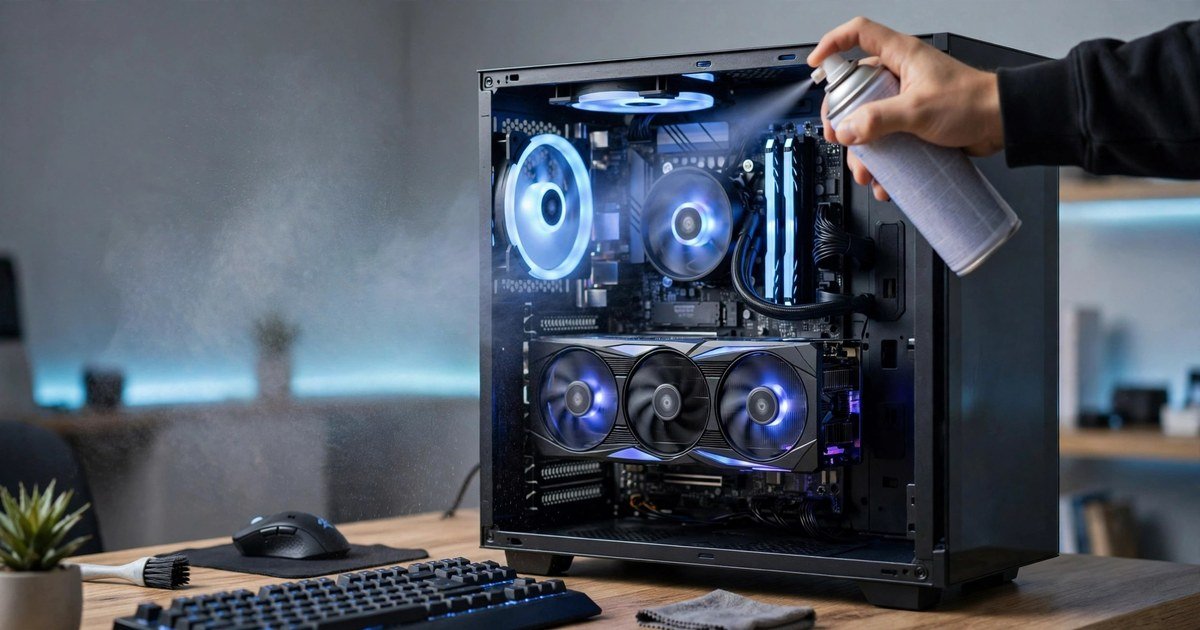
Dust is the quiet enemy of every gaming PC. It builds up inside the case, clogs fans and heatsinks, and slowly pushes temperatures up. Your games then run louder, hotter and slower. The fix is simple and cheap. Clean your gaming PC safely with compressed air, a soft brush and a microfibre cloth every three to six months. This guide shows you how, with UK tools and the safety steps most guides skip.
Why Dust Hurts Your Gaming PC
A gaming PC moves a lot of air. Intake fans pull cool air in, exhaust fans push hot air out, and dust rides in with that airflow. It settles on fan blades, heatsink fins and dust filters, trapping heat and forcing fans to spin faster and louder.
The result shows up in your games. Your CPU and GPU run hotter, so they lower their speeds to protect themselves. That is thermal throttling. Frame rates drop, stutters appear and your PC sounds like a jet engine. A clean PC runs cooler, quieter and holds its frame rates for longer. Heat is a common cause of lost performance, so it pays to understand how heat affects frame rates on a gaming laptop too.
Signs Your Gaming PC Needs Cleaning Now
You do not need to guess. Your fans are louder than they used to be. CPU or GPU temperatures sit above 85 degrees under load when they used to sit in the 70s. Frame rates have dropped in games that used to run smoothly. You can see a grey layer of dust through the side panel. Your PC shuts down during long sessions.
Two or more of these signs means clean the PC this week. Dust only on the outside needs just a quick filter clean.
What You Need to Clean a Gaming PC
You need very little. A can of compressed air costs around £5 to £8 from UK retailers such as Amazon UK, Currys, Scan or Overclockers UK. An electric air duster costs £25 to £40 and pays for itself after a few cleans. You also need a soft anti-static brush, a microfibre cloth, 90% or higher isopropyl alcohol, and cotton swabs.
Do not use a household vacuum cleaner inside your PC. It can build static that damages parts, and its suction can pull cables loose. Do not use a hair dryer. It blows warm air and pushes dust deeper. Do not use household cleaners or anything ammonia based inside, and never use a damp cloth on circuit boards.
Before You Start: Safety Steps
Shut the PC down fully. Switch off the power supply using the rocker switch on the back. Unplug the power cable. Press the case power button and hold it for about five seconds to drain leftover charge.
Move the PC to a well ventilated area, ideally outside or near an open window. Work on a hard surface, not on carpet, because carpet builds static. Ground yourself by touching an unpainted metal part of the case first.
Step 1: Clean the Dust Filters First
Dust filters catch most of the dust before it reaches your parts, so start here. Slide or unclip each filter from the case. Most sit at the front, top and underneath the case.
Tap the loose dust off outdoors. You can rinse fabric or fine mesh filters under a tap, then let them dry fully. Never put a damp filter back in.
Step 2: Hold the Fans Still and Blow the Dust Out
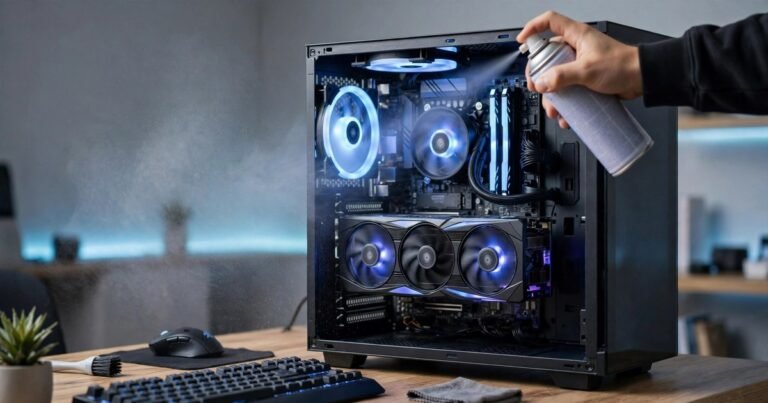
Open the side panel and look before you blow air anywhere. The usual spots are the intake fans, the CPU cooler, the graphics card and the power supply filter.
Hold each fan blade still with a finger while you blow air through it. A fan spun by compressed air acts like a small generator and can send voltage back into the motherboard, and it can spin far faster than designed.
Use short bursts from about 15 cm away and keep the can upright. Tilting it can spray liquid propellant onto your parts. Work from top to bottom.
Step 3: Clean the CPU Cooler and Graphics Card
Aim the air through the CPU heatsink fins from several angles so dust exits the other side. Use the soft brush to loosen caked dust, then blow it away.
Blow dust off the graphics card surface and out from between its fans and heatsink, holding the GPU fans still. Do not remove the CPU cooler or graphics card for a routine clean. Removing the cooler means reapplying thermal paste.
Step 4: Clean the Motherboard and the Rest of the Case
Use the soft brush on the motherboard surface with light strokes, then short air bursts to lift the dust away. Blow air through the RAM slots and PCIe slots only. Do not insert anything into these slots. Blow the remaining dust from the bottom of the case. For the power supply, blow through the external grille only. Never open a PSU. The capacitors inside can hold a dangerous charge long after it is unplugged.
Step 5: Put It Back Together and Check Your Temperatures
Refit the dust filters once they are fully dry, refit the side panel, plug the power cable back in and start the PC.
Check your temperatures before your next gaming session. Free tools such as HWMonitor or HWiNFO show CPU and GPU temperatures under load. You should see lower temperatures and quieter fans.
How Often Should You Clean Your Gaming PC?
Do a filter clean every one to two months and a deep clean every three to six months.
Clean more often if you have pets, if the PC sits on the floor or on carpet, or if anyone smokes or vapes near it. UK homes with carpet and pets can need a filter clean every month.
Good dust filters and positive air pressure make cleaning quicker. Our guide on how to choose your first gaming PC in the UK covers case airflow and what to look for.
Will Cleaning Void Your PC Warranty?
Most UK warranties allow you to open the case and clean it. Routine cleaning with compressed air does not void the warranty on a prebuilt PC from a UK retailer.
Breaking seals on specific parts, removing a sealed cooler, or reapplying thermal paste can affect your warranty, so check your terms before going beyond a basic dust clean. Under the Consumer Rights Act 2015, a retailer cannot refuse a valid fault claim because you opened the case for cleaning.
Mistakes to Avoid When Cleaning a Gaming PC
Never use a vacuum cleaner inside the case. Never let fans spin freely under compressed air. Never tilt the compressed air can. Never spray liquid on circuit boards. Never clean a PC that is still plugged in. Never open the power supply.
Frequently Asked Questions
How often should I clean my gaming PC?
Do a light filter clean every one to two months and a deep internal clean every three to six months.
Is compressed air safe for a gaming PC?
Yes, if you use it correctly. Keep the can upright, use short bursts, and hold fan blades still.
Can I use a vacuum cleaner to clean my PC?
It is best not to. A household vacuum can build static that damages parts. Use compressed air or an electric air duster instead.
Can I clean my gaming PC without opening it?
You can clean the filters and the outside without opening the case. A proper clean needs the side panel off to reach the fans, heatsink and graphics card.
Does dust really lower gaming performance?
Yes. Dust blocks airflow and insulates heatsinks, so temperatures rise. Hot parts slow down to stay safe, which shows up as lower frame rates and stutters.
What should I do if my PC is still hot after cleaning?
Check that all fans spin the right way and that the filters are dry and refitted correctly. If temperatures stay high, the thermal paste may be old, or a fan may be failing.
Conclusion
Cleaning your gaming PC is one of the easiest maintenance jobs in gaming. A can of compressed air, a soft brush and ten minutes every few months keep temperatures down, fans quiet and frame rates steady. Start with the filters, hold the fans still, and never open the power supply.
About the Author