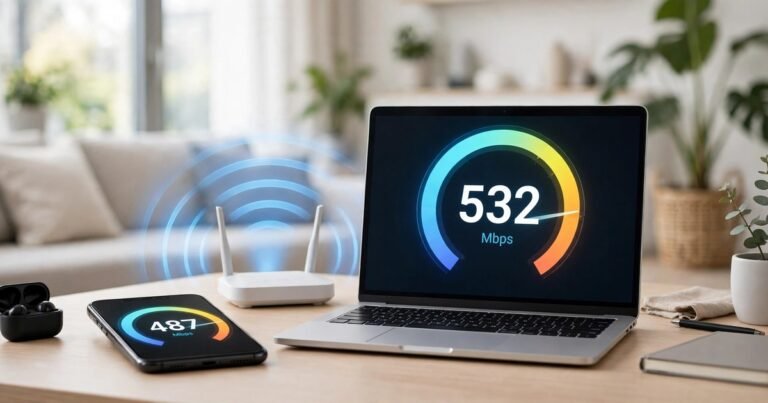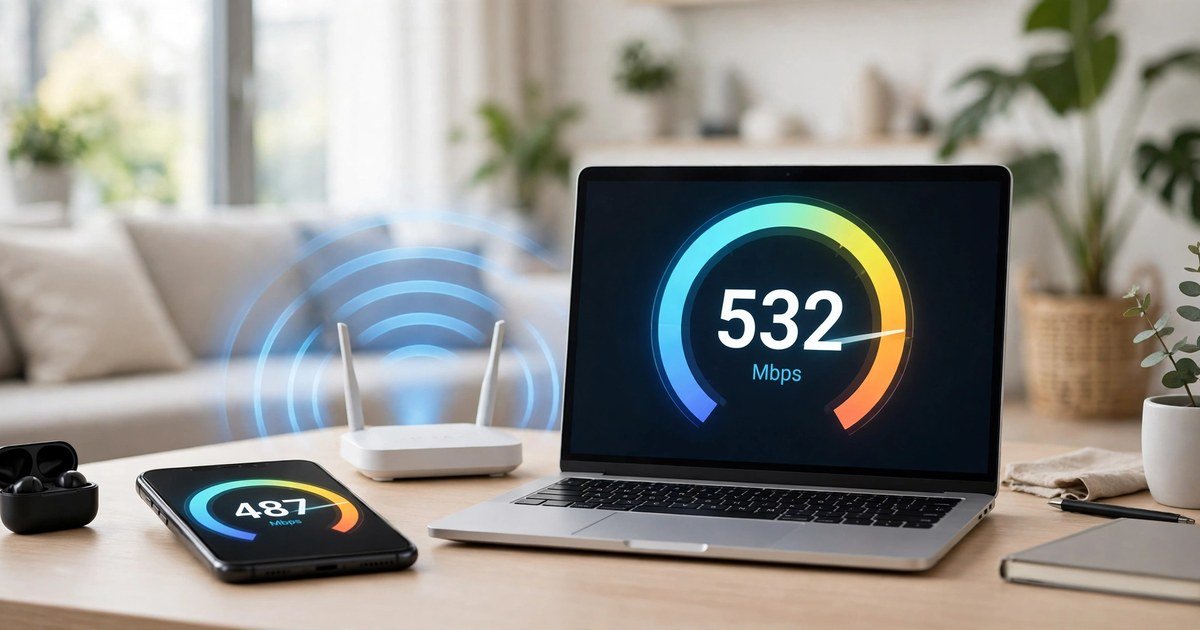
You can check your Wi-Fi speed on your phone or laptop in under a minute with a free speed test tool. Open Speedtest.net or Fast.com in your browser, tap Go, and you will see three numbers: download speed, upload speed and ping. Download speed matters most for streaming and browsing, upload speed matters for video calls and sending files, and ping matters for gaming and live calls. For a result you can trust, pause downloads and streams first, stand in the room where the problem is, and run the test three times.
Wi-Fi Speed Is Not the Same as Broadband Speed
This is the mix-up that causes most confusion. Broadband speed is the speed your provider delivers to your router. Wi-Fi speed is the speed between your router and your device. A speed test run over Wi-Fi measures both together, and the slower of the two sets the result.
That matters in UK homes. Thick walls, solid floors and a router tucked behind the television can cut your Wi-Fi speed in half, even when the broadband line itself is fine. If you pay for 100 Mbps and your phone shows 25 Mbps in the bedroom, the problem may be your Wi-Fi, not your provider. The only way to know which one is at fault is to test both, and this guide shows you how.
Before You Test: Three Rules for an Accurate Result
A single careless test tells you almost nothing. Follow these three rules first.
First, pause everything else. Stop downloads, game updates, cloud backups and streams on other devices in the house. One background update can halve your result.
Second, turn off your VPN. A VPN routes your traffic through another server and will slow the test. Switch it off, test, then switch it back on.
Third, test three times and take the average. Speed varies from minute to minute, so one result is a snapshot, not a verdict. Test once in the morning, once in the evening between 7pm and 11pm when UK networks are busiest, and once more on another day.
How to Check Wi-Fi Speed on Your Phone
On Android
Open Chrome and go to Speedtest.net, or download the Speedtest app from the Google Play Store. Make sure you are connected to Wi-Fi, not mobile data, and close apps running in the background. Tap Go and wait about 30 seconds. The app shows your download speed, upload speed and ping.
For a Wi-Fi-only reading, the free WiFi Speed Test app by Zoltan Pallagi measures the speed between your phone and your router without testing the internet at all. Switch the internet test off inside the app, tap Start, and it reports your local Wi-Fi speed in Mbps. This is useful when you want to know whether the Wi-Fi itself is slow, rather than the broadband line.
On iPhone
Open Safari and go to Speedtest.net or Fast.com. Fast.com starts automatically and shows your download speed straight away, with no sign-up and nothing to install. For the full picture, use the Speedtest app from the App Store, which adds upload speed and ping.
The Wi-Fi SweetSpots app is a good iPhone alternative if you want to walk around the house and watch the speed change from room to room. It shows average speeds over time, which makes dead spots easy to spot.
How to Check Wi-Fi Speed on Your Laptop
On Windows 11
Open your browser and go to Speedtest.net, then click Go. The test takes about a minute and reports download speed, upload speed and ping.
You can also see the speed of the link between your laptop and your router without any test at all. Open Settings, then Network and Internet, then Wi-Fi, then click your network name. The figure shown is the maximum speed of your Wi-Fi connection to the router, not your internet speed, but a low figure here points straight at a Wi-Fi problem.
For the most honest result, plug your laptop into the router with an Ethernet cable and run the test again. The cable removes Wi-Fi from the equation, so the result shows what your broadband line actually delivers.
On macOS
Open Safari and go to Speedtest.net or Fast.com, then run the test. The steps are the same as on Windows. To see your Wi-Fi link speed, hold the Option key and click the Wi-Fi icon in the menu bar. The transmit rate shown is the speed of the connection between your Mac and the router.
What Your Results Mean
A speed test gives you three numbers. Here is what each one means for a UK home, and what counts as good.
Download speed is the rate data reaches your device, measured in Mbps. It decides how smoothly you stream, browse and download. Upload speed is the rate data leaves your device. It matters for video calls, live streaming and backing up photos to the cloud. Ping, also called latency, is the delay in milliseconds before data starts moving. Low ping matters most for online gaming and video calls.
| Download speed | What it handles comfortably |
|---|---|
| Under 10 Mbps | Basic browsing and email only. Streaming and video calls will struggle. |
| 10 to 30 Mbps | Standard definition streaming, light browsing and basic video calls. Slow with several users. |
| 30 to 100 Mbps | HD streaming, video calls, working from home and several devices at once. |
| 100 to 500 Mbps | 4K streaming, online gaming, large downloads and busy households. |
| Over 500 Mbps | Full fibre performance. Several 4K streams and heavy use at the same time. |
For ping, under 20 ms is excellent and ideal for gaming and video calls. Between 20 and 60 ms is good for everyday use. Between 60 and 100 ms you may notice slight delays on calls. Over 100 ms, lag becomes obvious in games and calls.
As a rough guide for single activities, browsing and email need around 5 Mbps, HD streaming and basic video calls need around 10 Mbps, and 4K streaming needs around 25 Mbps. These are per device, so add them up when several people are online at once. A household of four streaming, gaming and working at the same time will feel cramped on 30 Mbps but comfortable on 100 Mbps.
The Two-Location Test That Finds the Real Problem
One test in one room cannot tell you whether your broadband or your Wi-Fi is at fault. Run the same test in two places instead.
First, stand next to the router and run the test. Then walk to the room where the problem is and run it again. If the speed near the router is close to what you pay for but the bedroom result is far lower, your broadband is fine and the Wi-Fi is the weak link. Moving the router into the open, away from the television and thick walls, often helps. In a larger home, mesh Wi-Fi spreads the signal further. If the speed is slow even next to the router, the problem is the line itself, and that is a conversation with your provider.
If the Wi-Fi turns out to be the weak link, our guide to mesh Wi-Fi vs Wi-Fi extenders explains which fix suits a UK home, including Virgin Media Hub modem mode and thick-wall houses. Gamers with a weak signal in one room should also read our guide to the best Wi-Fi extender for gaming in the UK, which compares extenders, mesh and powerline for gaming latency.
What to Do If Your Speed Is Too Slow
If the test shows a real problem, work through these fixes in order.
Restart the router. Switch it off at the wall for a full minute, then switch it back on and wait for the lights to settle before testing again. This clears more faults than any other single step.
Move the router. Put it in the open, on a shelf or table, in the centre of the home if possible. Wi-Fi cannot pass easily through thick walls, metal objects and large appliances, so a router hidden in a cupboard or behind the television is fighting its own home.
Switch bands. If your router offers separate 2.4 GHz and 5 GHz networks, test both. The 5 GHz band is faster over short distances, while 2.4 GHz reaches further through walls. Pick the faster one in each room.
Check what is running. On a Windows laptop, Task Manager shows network use per app. On a Mac, Activity Monitor does the same. A cloud backup or game update running quietly in the background can swallow your whole connection.
Compare with your contract. Ofcom requires UK broadband providers to give you a minimum guaranteed speed. Find that figure in your contract or your provider’s app, then compare it with your wired test result. If you pay for 100 Mbps and regularly get 15 Mbps over a cable, something is wrong and your provider has to act. Keep a short diary of your test results, with dates and times, as evidence.
Frequently Asked Questions
What is a good Wi-Fi speed in the UK?
For one or two people browsing and streaming in HD, 30 to 50 Mbps is usually enough. For a family streaming in 4K, gaming and working from home at the same time, 100 Mbps or more is more comfortable. The average UK home now sits well above 50 Mbps, so a result under 30 Mbps deserves a closer look.
Why is my Wi-Fi speed slower than the speed I pay for?
Most often because the test ran over Wi-Fi, and Wi-Fi always loses some speed to distance, walls and interference. Test with an Ethernet cable to see what the line delivers. If the wired result is close to your package speed, the line is fine and the Wi-Fi needs attention. If the wired result is also slow, contact your provider.
Is Speedtest.net free?
Yes. Speedtest.net is free in a browser on phone and laptop, and the app is free on Android and iOS. Fast.com is also free, runs in the browser, and starts automatically. Neither needs an account.
Does it matter what time of day I test?
Yes. UK networks are busiest between 7pm and 11pm, so speeds often dip in the evening. Test at different times and compare. A connection that is fast at 10am but slow at 9pm is usually a busy network, not a broken one.
Can I test Wi-Fi speed without an app?
Yes. Open Speedtest.net or Fast.com in your phone or laptop browser and tap Go. No app or sign-up is needed, and the browser test works on Android, iPhone, Windows and macOS.
What ping is good for gaming in the UK?
Under 30 ms is excellent for online gaming. Between 30 and 60 ms is playable for most games. Over 100 ms, lag becomes obvious and competitive games suffer. If your ping is high, test with an Ethernet cable, because Wi-Fi adds delay and jitter.
Conclusion
Checking your Wi-Fi speed takes less than a minute, but the result only helps if you read it properly. Test on your phone and your laptop, test in two rooms, and test three times before you draw a conclusion. Compare the numbers with what your package promises and with what your household actually does online. Most slow connections turn out to be a Wi-Fi problem, not a broadband problem, and that is good news, because moving a router or adding mesh coverage is far easier than arguing with a provider.
About the Author