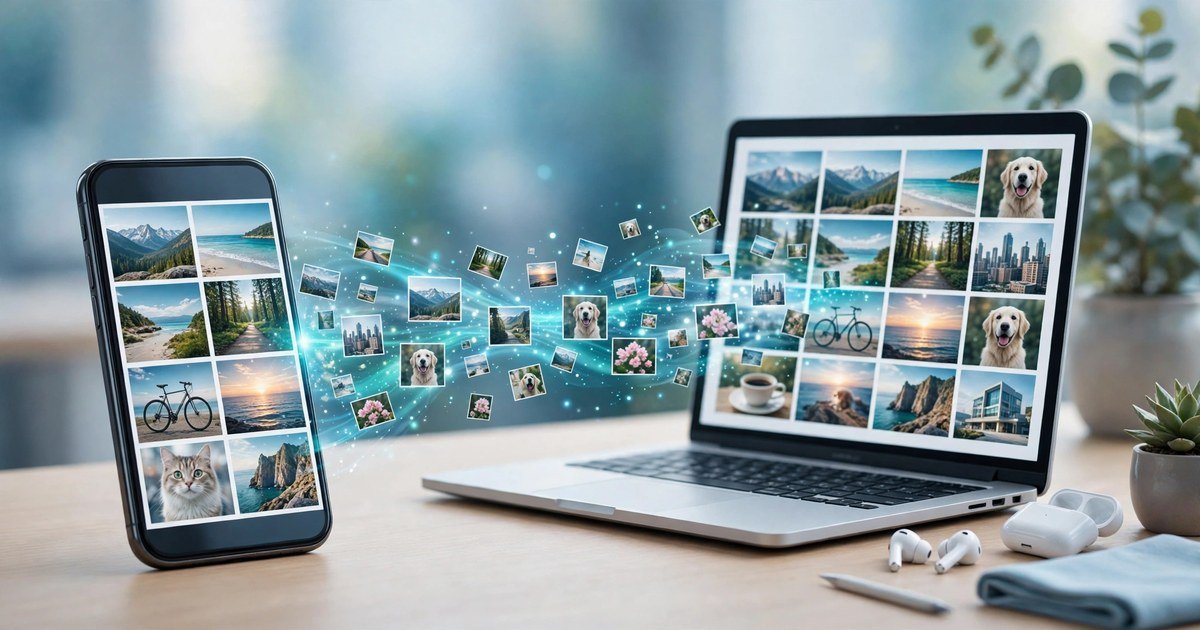
Turn on camera upload in one cloud service and install the same service on your computer. Google Photos, iCloud, OneDrive and Dropbox all offer this. Take a photo on your phone, and a copy appears in a folder on your computer without a cable.
Pick One Service and Stick to It
Cloud services work best when you pick one. Running two or three at once uploads every photo several times, fills your free storage faster, and splits your library across apps. Pick the service that fits your phone and computer, and turn camera upload off in the others.
| Service | Free storage | Best for |
|---|---|---|
| Google Photos | 15 GB, shared with Gmail and Drive | Android phones and iPhones |
| iCloud Photos | 5 GB | iPhones and Macs |
| OneDrive | 5 GB | Windows 11 users |
| Dropbox | 2 GB | Simple folders on every device |
Method 1: Google Photos (Android and iPhone)
Google Photos is the simplest choice for Android phones. Open the app, tap your profile picture, then Photos settings, then Backup, and switch it on. Choose Wi-Fi only to protect your mobile data. For quality, Original keeps full quality, while Storage saver compresses files slightly and saves space.
To get the photos onto your computer, install Drive for desktop and sign in with the same Google account. In its settings, add your Google Photos folder and choose the option to mirror files. Your photos then download as originals.
One change to know about in 2026: Google removed the automatic PC-to-Photos backup from Drive for desktop, so PC folders no longer flow into Google Photos by themselves. You can still back them up, but you have to select that destination directly in the Drive for desktop settings.
Method 2: iCloud Photos (iPhone to Windows or Mac)
If you have an iPhone, iCloud Photos is the most automatic option Apple offers. Open Settings, tap your name, then iCloud, then Photos, and turn on Sync this iPhone. If storage is tight, choose Optimise iPhone Storage, which keeps full-size originals in iCloud and smaller versions on your phone.
On a Mac, open the Photos app with the same Apple ID and your photos sync by themselves. On a Windows PC, install iCloud for Windows from the Microsoft Store, sign in, and turn on Photos. Choose the option to download originals, so you hold a real copy on your hard drive.
Method 3: OneDrive Camera Upload (Android and iPhone)
OneDrive is a strong pick for Windows users because it is built into Windows 11 already. Install the OneDrive app, sign in with your Microsoft account, tap your profile icon, then Settings, and turn on Camera upload. Set uploads to Wi-Fi only to protect your mobile data. On your Windows computer, phone photos appear in the Camera Roll folder inside your OneDrive folder.
Method 4: Dropbox Camera Uploads (Android and iPhone)
Dropbox is the simplest option if you want your photos in a plain folder on every device. Install the Dropbox app, open Settings, tap Camera Uploads, and switch them on. Install Dropbox on your computer with the same account, and new photos land in the Camera Uploads folder automatically.
Method 5: USB Cable and Windows AutoPlay (No Cloud)
If you do not want your photos in the cloud at all, a cable still works. Connect your phone with a USB cable and set the USB mode to File Transfer. On Windows 11, open Settings, go to Bluetooth and devices, then AutoPlay, find your phone, and choose Import photos and videos. Windows then imports new photos each time you plug in. On a Mac, use the Photos app or Image Capture.
The Sync Trap: Why Your Photos Can Still Disappear
Sync is not the same as a backup. When a cloud service syncs your photos, it mirrors them. Delete a photo from your phone, and the service deletes it from the cloud too, after a limited time in the bin. If your phone is lost, the synced copy may not save you.
Keep a second copy that does not sync back. Once your photos have downloaded to your computer, copy the folder to an external hard drive, or leave the computer copy alone as your archive. The classic rule is 3-2-1: three copies of anything important, on two different types of storage, with one copy off site. Your phone, your computer and the cloud already give you that.
What to Do When Free Storage Runs Out
The free allowance fills up sooner or later, usually because of videos. Delete blurry shots, duplicate bursts and long videos you do not need. Switch to a storage saver quality for new uploads. It roughly halves the space each photo uses. Free up space on your computer before you download originals; our guide on how to delete temporary files in Windows 11 safely walks through the safe folders to clear first. Or pay for more storage. Google One, iCloud+ and Microsoft 365 all sell extra space for a small monthly fee. Do not open a second free account to dodge the limit.
How to Check the Backup Actually Worked
A backup you never check is not a backup. Once a month, compare the newest photo in the folder on your computer with the newest photo on your phone. They should match. Open your cloud app and check that it says backup is complete, with no error or paused message. Then open one photo from the computer copy to confirm the file is real. If new photos stop appearing, check that you are on Wi-Fi, that your cloud storage is not full, and that the app can run in the background. On Android, battery optimisation can pause uploads. On iPhone, uploads pause when Low Power Mode is on.
Which Method Should You Choose?
Android and Windows: Google Photos or OneDrive. iPhone and Mac: iCloud Photos. iPhone and Windows: iCloud for Windows, or Google Photos if you already use Google services. No cloud: the USB cable and AutoPlay method.
One last privacy note: your photos sit in your account, so protect it like you protect your email, with a strong, unique password and two factor authentication. If you are unsure how apps handle your data, read our guide on how to stop apps tracking you on Android before you grant new permissions.
Frequently Asked Questions
Do I need to keep my phone plugged in for automatic backup?
No. Charging helps on some phones, but the backup works on Wi-Fi whenever your phone is awake. Keep the app allowed to run in the background so uploads are not paused.
Will backing up photos use my mobile data?
Only if you allow it. Every service in this guide has a Wi-Fi only option. Turn it on, and uploads wait until you are home on Wi-Fi.
Are my photos private in Google Photos or iCloud?
Your photos are tied to your account and are not public by default. Only you can see them unless you share an album or a link.
What happens if I delete a photo from my phone?
It is also removed from the synced cloud copy after a limited time in the bin. That is why sync alone is not a backup. Keep a separate copy on your computer or an external drive.
Can I back up photos without the cloud?
Yes. Connect your phone with a USB cable and use Windows AutoPlay to import photos automatically, or use the Photos app or Image Capture on a Mac. It only runs when you plug the phone in.
Why are my photos not appearing on my computer?
Check the Wi-Fi only setting, whether your cloud storage is full, and whether camera upload is switched on with background permission. Note that the Windows Phone Link app shows your recent photos but does not save them to your computer. You need a cloud service or a cable import for that.
Conclusion
Setting this up takes about ten minutes, and then it runs by itself. Pick one service, switch on camera upload, install the same service on your computer, and check once a month that new photos are arriving. That small habit is the difference between losing years of photos and opening a folder on your computer.
About the Author